The pause function lives on the Piso WiFi machine itself - Chrome is just the tool you use to reach it. Any browser works the same way.
For a complete overview of the system, check our main Piso WiFi guide.
Open Chrome, tap the address bar at the top and type `http://10.0.0.0.1`. Make sure you type it into the address bar where the URL normally shows - not into the search box.
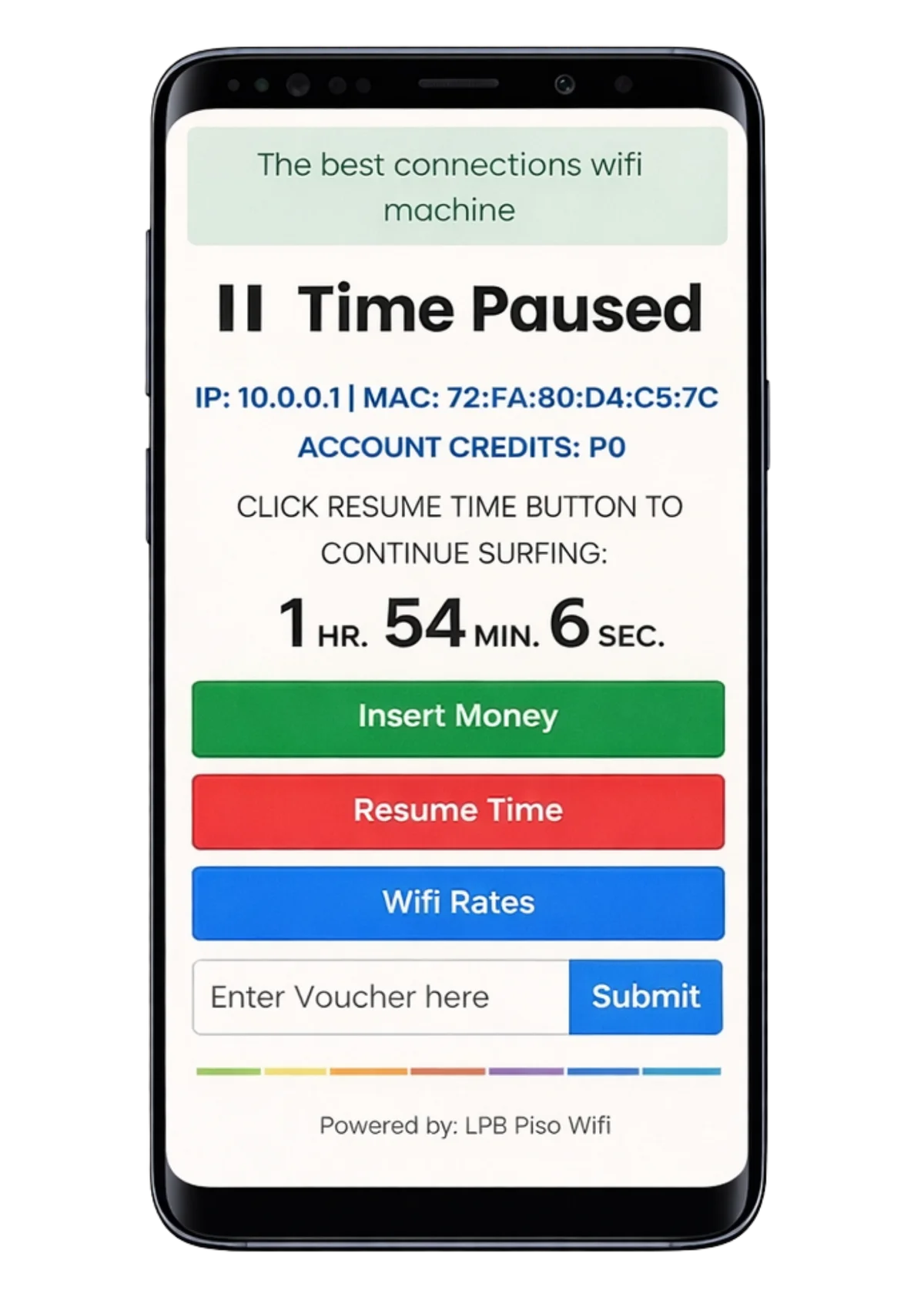
How to Pause Piso WiFi in Chrome - Step by Step
- Make sure your device is connected to the Piso WiFi machine's WiFi network. Check your WiFi settings if you're not sure.
- Open Chrome on your phone or laptop.
- Tap or click the address bar at the top of the browser - the bar that shows the current web address.
- Type `http://10.0.0.0.1` and press Enter or Go. If that address doesn't load, try `http://10.0.0.1` instead.
- The Piso WiFi portal or admin page opens.
- Find the Pause, Pause Time or Suspend button and tap it.
- Your session is now paused. Come back later, reconnect to the network and visit the same address to resume.
Why Chrome Shows ERR_ADDRESS_UNREACHABLE
This error has two common causes when you're trying to reach Piso WiFi:
You're not connected to the machine's network. Your phone may still be on your home WiFi or mobile data. Switch to the Piso WiFi network in your WiFi settings.
Chrome adds https:// on its own. Chrome sometimes upgrades plain HTTP addresses to HTTPS. The Piso WiFi admin panel doesn't support HTTPS. Type `http://10.0.0.0.1` with the `http://` prefix to force plain HTTP.
See the full troubleshooting guide: ERR_ADDRESS_UNREACHABLE - 5 Fixes.
Chrome on Mobile vs Desktop - Any Difference?
No difference at all. The admin panel is built for mobile use since most customers access it from their phones. Chrome on Android and iOS both work well.
One thing to watch on mobile Chrome: after typing the address, make sure you tap Go or the Enter key on your keyboard - not the search suggestion that sometimes pops up below the address bar.